

CapCut Video Editor - Professional Editing
CapCut Pro has transformed mobile and desktop video editing by providing creator-grade features in an accessible interface. While standard video editors lock essential features like keyframe animation, background removal, and advanced motion tracking behind steep subscription paywalls or complex learning curves, CapCut Pro delivers these tools natively. Whether you are editing vertical videos for short-form platforms or assembling horizontal high-resolution content, understanding how to leverage CapCut Pro maximize your visual output efficiently.
What Makes CapCut Pro the Ultimate Video Editing Tool?
CapCut Pro stands out because it balances deep editing functionality with an intuitive user experience. Unlike legacy visual editing software that requires hours of tutorial viewing, CapCut Pro organizes sophisticated features into a clear, responsive layout.
[Import Media] ➔ [Cut & Timeline Assembly] ➔ [Apply Pro Features] ➔ [Export Up to 4K]
                         │
                         ├─ Auto-Captions & AI Effects
                         ├─ Chroma Key & Masking
                         └─ Speed Ramping & Keyframes
Key Highlights
-
AI Speed Ramping: Smooth out velocity changes with custom curve presets or manual control points.
-
Auto-Captions & Subtitles: Generate speech-to-text captions in dozens of languages with built-in text animation styles.
-
Smart Background Removal: Cut out subjects instantly without needing a physical green screen.
-
4K & High Frame Rate Export: Output clean, uncompressed video up to 60 FPS for crisp playback across all devices.
Core Features Breakdown
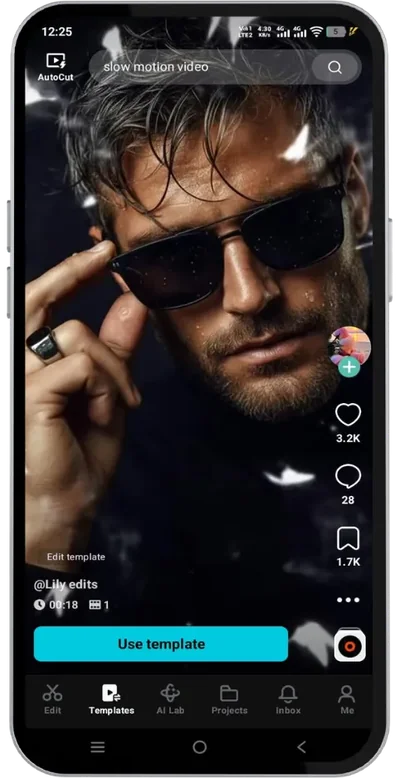
Understanding the toolset within CapCut Pro enables you to execute complex edits in a fraction of the time.
| Feature Category | Tools Included | Primary Use Case |
| Motion & Tracking | Keyframe Animation, Smart Motion Tracking | Moving text labels, dynamic zoom effects, object-following graphics |
| Visual Effects & AI | AI Body Effects, Style Transfer, Enhancers | Enhancing portrait footage, changing background aesthetics |
| Color Grading | LUTS, HSL Adjustments, Auto Color Match | Matching color tones across multiple camera angles |
| Audio Suite | Noise Reduction, Vocal Isolation, Audio Sync | Cleaning up muffled microphone audio, syncing cuts to music beats |
How to Get Started with CapCut Pro
Mastering the main editing workflow ensures your timeline remains organized and your render times stay fast.
Comparing Editing Workflow Options
When considering your setup, creators often evaluate different ways to access and run the application across mobile and desktop environments.
Desktop App vs. Mobile App vs. CapCut Pro APK Setup
If you plan to execute a CapCut Pro download on desktop or search for a CapCut Pro APK for mobile devices, each platform offers specific advantages:
-
Desktop Version: Handles multi-track timelines, complex masking, and heavy 4K footage with superior rendering speeds. It utilizes your computer's GPU hardware acceleration.
-
Mobile App Setup: Ideal for fast, on-the-go edits. The touch interface streamlines auto-captioning and quick vertical video adjustments directly on your phone.
-
Installing via CapCut Pro APK Download: Mobile users often look for direct installation packages. When executing a CapCut Pro APK download, ensure you only source files from verified, secure repositories to protect your system from modified or unsafe code.
Pro Techniques for Higher Production Value
To make your videos stand out, apply these advanced workflow techniques within the timeline:
1. Velocity Editing with Custom Curves
Static speed changes can make cuts look jarring. Use the Curve option within the Speed menu to create smooth acceleration and deceleration ramps. This technique works exceptionally well for sports highlights, cinematic transitions, and dance clips.
2. Multi-Layer Masking and Overlays
Stack multiple tracks on top of your main video track. Apply composite masks (Circle, Rectangle, or Split) to blend images together, reveal text behind moving subjects, or create seamless split-screen visuals.
3. Noise Reduction and Vocal Isolation
Poor audio ruins good visuals. Select your audio track, toggle on Noise Reduction to instantly eliminate background static, and use Vocal Isolation to separate speech from noisy background environments.
Best Practices for File Security and Software Updates
Maintaining smooth system performance requires keeping your editing software updated through safe channels.
-
Avoid Unverified Downloads: Searching for third-party executable files or unvetted CapCut Pro APK packages can expose your hardware to malware. Always download installer files from official store fronts or verified developer sources.
-
Clear Cache Regularly: High-resolution editing consumes significant storage. Go to settings and clear your edit cache periodically to free up temporary drive space without losing your project timelines.
-
Backup Project Files: Save local backups of important assets and draft project files so you never lose work during power outages or software crashes.
Creating smooth keyframe animations in CapCut Pro requires establishing start and end control points, then applying easing curves to eliminate robotic linear movement.

 English
 Arabic
 French
 Spanish
 Portuguese
 Deutsch
 Dutch
Dutch
 Italiano
 Russian
 Romaian
 Portuguese (Brazil)
 Greek
Greek