


IPTV on Windows PC in Sweden: Players, Setup, and Streaming Tips
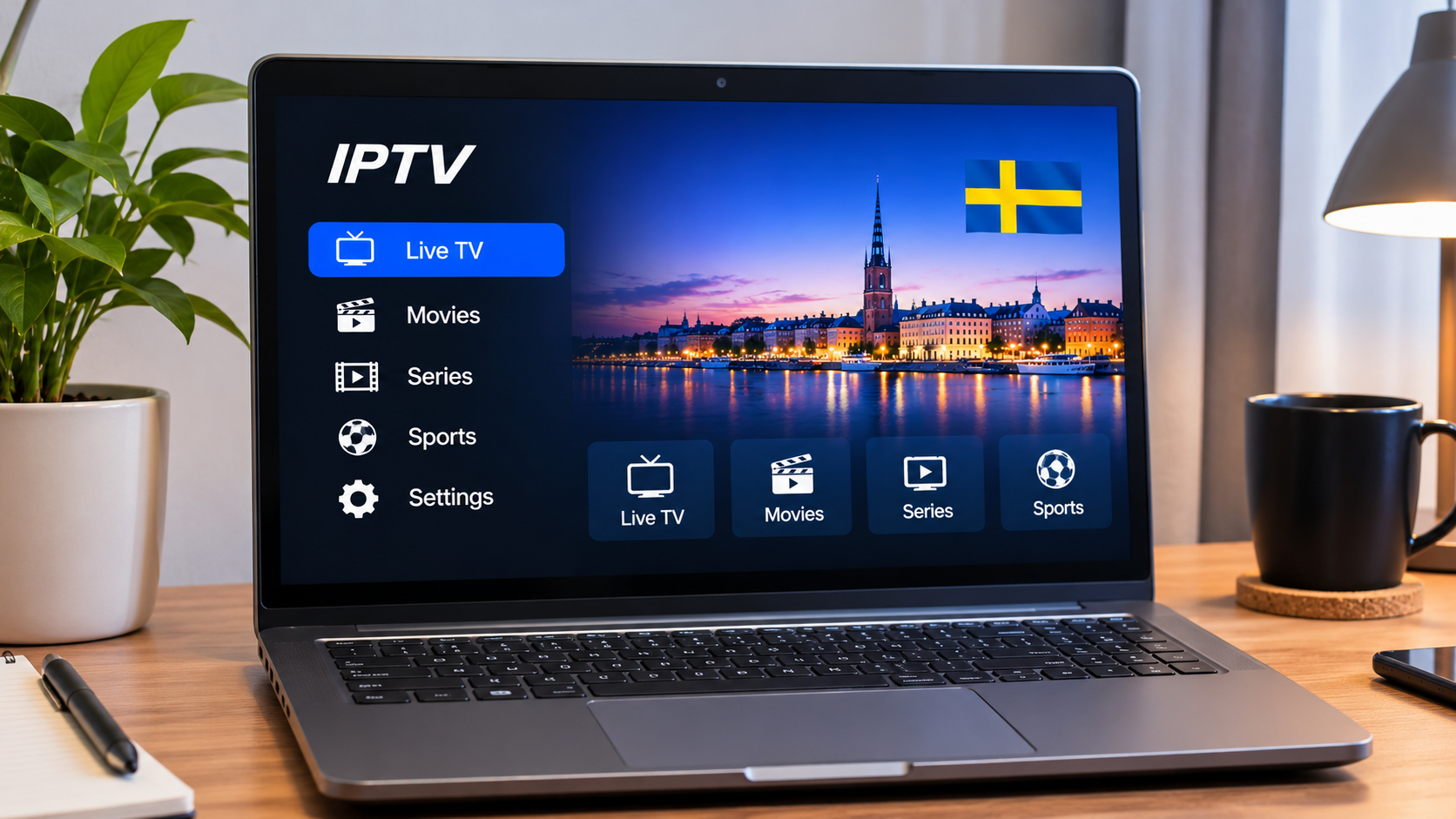
A Windows computer can be a convenient way to watch IPTV without depending on a Smart TV or dedicated streaming box. Laptops and desktop PCs usually offer flexible software choices, larger storage capacity, easy keyboard navigation, and straightforward network troubleshooting.
For viewers in Sweden, using IPTV on Windows can be especially useful when watching from a home office, bedroom, student accommodation, or while travelling with a laptop.
The experience still depends on choosing a compatible IPTV player, configuring the account correctly, and maintaining a stable internet connection.
How IPTV Works on a Windows Computer
IPTV delivers television content through an internet connection.
On Windows, users normally install a compatible IPTV or media player and connect it to the subscription information supplied by their service.
Depending on the application, supported connection methods may include:
-
M3U playlists
-
Xtream-style login credentials
-
Portal-based access
-
Local playlist files
-
Application-specific account systems
Once configured, the player can organize available live television, films, series, and program information when supported.
Why Use a PC for IPTV?
A computer offers several advantages compared with some television-based setups.
Windows users can often:
-
Choose from several compatible players
-
Use a keyboard and mouse for navigation
-
Search large channel lists quickly
-
Connect a second monitor
-
Use Ethernet easily
-
Manage playlist files
-
Adjust audio and subtitle settings
-
Troubleshoot network problems more easily
A laptop also provides portability, allowing viewers to move between rooms without changing the main television setup.
Choose a Compatible IPTV Player
The IPTV player determines how channels and on-demand content are displayed.
Before installing an application, check whether it supports the login format provided by the IPTV service.
Useful features may include:
-
Live channel categories
-
Favorites
-
Search
-
Electronic Program Guide
-
Movies and series organization
-
Subtitle controls
-
Multiple audio tracks
-
Full-screen mode
-
Playlist refresh options
Different applications are designed for different types of viewers.
Someone who mainly watches live television may prefer a simple channel-focused interface, while another user may prioritize movie and series navigation.
Using an M3U Playlist on Windows
M3U is a commonly supported playlist format.
A compatible player can usually open an M3U URL or playlist file and load the available channels.
The exact process varies by application, but users may be asked to:
-
Open the playlist section
-
Select an M3U option
-
Enter the playlist URL
-
Give the playlist a name
-
Save and refresh the content
Because an M3U URL may include account credentials, it should be treated as private information.
Avoid posting complete links publicly.
Using Xtream-Style Credentials
Some Windows IPTV applications provide a separate login option based on:
-
Server URL
-
Username
-
Password
This format can be easier to manage than a long playlist URL.
Once connected, the application may automatically organize available live channels, films, series, and EPG data.
The exact result depends on the service and player.
Can VLC Be Used for IPTV?
VLC is a widely used media player that can open many network streams and playlist formats.
For users who want a simple way to test an M3U playlist, VLC may be suitable.
However, it does not always provide the same television-style interface as a dedicated IPTV application.
Advanced features such as detailed EPG navigation, categorized VOD libraries, and integrated favorites may be easier to manage in software designed specifically for IPTV.
Dedicated IPTV Player or General Media Player?
The better choice depends on how IPTV is used.
General Media Player
A general player can be useful when:
-
Testing individual streams
-
Opening a basic playlist
-
Troubleshooting playback
-
Watching occasional channels
Dedicated IPTV Player
A dedicated application may be better when users want:
-
Channel categories
-
Program guides
-
Favorites
-
Movie libraries
-
Series organization
-
Search
-
Account management
For regular everyday viewing, a dedicated interface is often easier to navigate.
Organize Channels With Favorites
Large IPTV playlists can contain many channels.
Favorites allow viewers to create a smaller list containing only frequently watched content.
A Swedish viewer might organize favorites around:
-
Swedish television
-
News
-
Sports
-
Movies
-
Family channels
-
International programming
Keeping the list focused can save time every time the player is opened.
Use Search on Large Playlists
One advantage of watching IPTV on a computer is access to a full keyboard.
Searching for a channel or program can be much faster than scrolling with a television remote.
A good Windows IPTV player may allow users to search across:
-
Live channels
-
Films
-
Series
-
Categories
-
Program titles
Search becomes particularly useful when the subscription contains a large content library.
Use the Electronic Program Guide
An Electronic Program Guide, or EPG, can make live television easier to understand.
Depending on the player and available data, viewers may see:
-
Current programs
-
Upcoming programs
-
Start times
-
End times
-
Program descriptions
-
Channel schedules
If EPG times appear incorrect, check the Windows timezone before changing application settings.
For viewers in Sweden, the computer should normally use the correct Swedish local time.
Windows Time and EPG Problems
Incorrect device time is a common reason program guides appear misaligned.
Before adjusting an EPG offset manually:
-
Check the Windows clock
-
Confirm the correct timezone
-
Enable automatic time synchronization where appropriate
-
Restart the IPTV player
-
Refresh the EPG
Only use manual offsets if the guide remains incorrect after the system time has been verified.
Internet Stability Is Essential
The computer may be powerful enough for streaming, but IPTV still depends on the network.
An unstable connection can cause:
-
Buffering
-
Frozen video
-
Delayed playback
-
Reduced picture quality
-
Stream disconnections
If IPTV starts buffering, first test whether other internet services are also affected.
This can help determine whether the issue is related to the player or the network.
Ethernet Is Useful for Desktop PCs
Desktop computers are often located near a router or network connection.
Using Ethernet can provide a stable connection and reduce problems caused by wireless interference.
A wired connection can be particularly useful for:
-
Live sports
-
Longer viewing sessions
-
High-quality streams
-
Recording where supported
Wi-Fi can still work well, especially on laptops, but Ethernet is worth testing when buffering occurs frequently.
Improve Wi-Fi for Laptop Viewing
When using a laptop wirelessly, signal quality matters.
Wi-Fi performance can decrease because of:
-
Distance from the router
-
Thick walls
-
Multiple floors
-
Nearby networks
-
Large furniture
-
Network congestion
Testing the laptop in another room can help determine whether signal strength is contributing to playback problems.
Check Other Household Network Activity
The Windows computer shares the home connection with other devices.
Streaming performance may be affected when someone else is:
-
Downloading large files
-
Updating games
-
Uploading cloud backups
-
Watching high-resolution video
-
Joining video calls
-
Gaming online
If IPTV works well at some times but poorly during busy periods, household network usage may be part of the problem.
IPTV on Windows for Swedish Viewers
A Windows PC can provide a flexible IPTV setup for users who prefer computer-based viewing or want another screen in addition to their television.
Viewers comparing subscriptions, streaming information, channel options, and compatible devices for Sweden can also explore Rapid IPTV Sweden while researching an IPTV setup suited to their household requirements.
The most useful setup is one that matches the device and viewing habits rather than simply offering the largest number of technical options.
Full-Screen Viewing
Most IPTV and media players support full-screen playback.
This can make a desktop monitor or laptop feel more like a television.
Users with multiple monitors may also be able to keep IPTV on one display while using another for other tasks.
However, demanding background programs can sometimes affect system performance, particularly on older computers.
Connect a Laptop to a TV
A Windows laptop can also be connected to a television.
HDMI is usually the simplest method when both devices support it.
This can allow the laptop to handle the IPTV software while the television acts as the larger display.
Before starting playback, check:
-
Screen resolution
-
Audio output
-
HDMI input
-
Display scaling
Windows may automatically detect the television, but audio output sometimes needs to be selected manually.
Subtitles on Windows IPTV Players
Windows applications can provide detailed subtitle controls.
Depending on the player and content, users may be able to select:
-
Swedish subtitles
-
English subtitles
-
Other available languages
-
External subtitle files
-
Subtitle delay
-
Text size
Subtitle availability still depends on the source stream.
The application cannot display a language track that is not included with the content unless external subtitles are supported and supplied separately.
Audio Track Selection
Some television streams and on-demand videos contain multiple audio tracks.
A compatible Windows player may allow users to switch between them.
Options can include:
-
Original audio
-
Swedish audio
-
English audio
-
Alternative commentary
-
Other available languages
This can be particularly useful for international television or multilingual households.
Keep the Computer Updated
Windows updates and graphics driver updates can affect video playback.
Users should keep the system reasonably current while avoiding unnecessary updates immediately before an important live event.
It is also useful to update the IPTV application itself when stable new versions are available.
Updates may improve:
-
Playback compatibility
-
Performance
-
Security
-
EPG functionality
-
Interface stability
Close Unnecessary Background Applications
Older computers may struggle when too many programs are running simultaneously.
Before watching an important stream, consider closing unnecessary:
-
Web browser tabs
-
Games
-
Video editors
-
Download tools
-
File synchronization applications
This can free memory and processing resources for video playback.
Windows Power Settings Can Affect Laptops
Laptop power-saving settings may reduce performance or interrupt playback.
For example, the computer may:
-
Dim the display
-
Enter sleep mode
-
Reduce network activity
-
Lower processor performance
When watching a long program, check that power settings will not put the computer to sleep unexpectedly.
Keeping the laptop connected to power can also prevent battery-saving modes from affecting performance.
IPTV Recording on Windows
Some Windows IPTV applications support recording.
This can be useful because computers often provide more storage than Smart TVs or streaming sticks.
Depending on the application, users may be able to:
-
Record live television
-
Schedule recordings
-
Select a storage folder
-
Play saved recordings later
Recording requires sufficient storage and a stable stream.
Users should also follow applicable service conditions and content rights.
Check Storage Before Recording
Video recordings can become large.
Before starting a long recording, confirm that the selected drive has enough available space.
Avoid filling the system drive completely because Windows needs free space for normal operation.
An external drive may be useful for users who record frequently.
Windows Security and IPTV Apps
Users should be careful when downloading IPTV software.
Whenever possible, obtain applications from reputable developers or trusted software stores.
Avoid unknown executables promoted through random download pages.
Before installing a program, consider:
-
Developer reputation
-
Official website
-
Digital signatures where available
-
Recent updates
-
User permissions requested
IPTV login credentials should only be entered into software the user trusts.
Protect Playlist and Login Information
M3U URLs, usernames, and passwords can provide access to an IPTV account.
Do not store them in publicly shared documents or screenshots.
A password manager or protected local file is safer than an unsecured text document on a shared PC.
This is especially important if several people use the same Windows account.
Create a Separate Windows User Account
Shared computers can benefit from separate Windows user profiles.
This allows different household members to keep their own:
-
Application settings
-
Favorites
-
Browser history
-
Files
-
Login information
A separate profile can also reduce the risk of children accidentally changing IPTV or system settings.
IPTV on a Laptop While Travelling
A Windows laptop can be convenient for travel.
Before leaving home:
-
Install the IPTV player
-
Test the login
-
Update the software
-
Confirm account details
-
Check charging equipment
-
Test headphones if needed
Hotel Wi-Fi can vary considerably in quality, so users should not assume the same performance they receive at home.
Public Wi-Fi Considerations
Public networks can be convenient but should be used carefully.
Avoid entering sensitive account information on unfamiliar systems when possible.
Users should also be aware that crowded networks may provide inconsistent streaming performance.
If IPTV buffers on hotel or airport Wi-Fi, the network may be the limitation rather than the Windows computer.
Common Windows IPTV Problems
Player Opens but Channels Do Not Load
Check the internet connection and verify the account details.
Video Plays Without Sound
Confirm the selected Windows audio output and check alternative audio tracks.
EPG Is Incorrect
Verify the system timezone and refresh the guide.
Video Stutters
Close unnecessary background programs and test the network connection.
Playlist Does Not Update
Refresh the playlist or restart the application.
App Crashes Frequently
Check for updates or test another compatible player.
Test Another Player When Troubleshooting
Windows provides more software flexibility than many Smart TV platforms.
If one IPTV player repeatedly experiences problems, testing the same account with another compatible application can help identify whether the issue is player-specific.
Avoid installing many unknown programs at once.
A controlled comparison between one or two reputable applications is usually enough.
Keep the Setup Simple
A useful Windows IPTV setup does not require extensive customization.
For many users, the essentials are:
-
One reliable player
-
Correct account information
-
Stable internet
-
Favorites
-
EPG data
-
Proper subtitle settings
-
Correct Windows timezone
Advanced settings should only be changed when a specific problem needs to be solved.
Final Thoughts
Windows PCs and laptops can provide a flexible platform for IPTV because users have access to multiple players, keyboard navigation, large displays, and straightforward network controls.
For Swedish viewers, the most important considerations are player compatibility, secure account configuration, internet stability, EPG accuracy, subtitle support, and computer performance.
A properly configured Windows IPTV setup can work well for live television, sports, films, and series while also providing an alternative viewing screen when the main television is being used by someone else.

 English
 Arabic
 French
 Spanish
 Portuguese
 Deutsch
 Turkish
 Dutch
 Italiano
 Russian
 Portuguese (Brazil)
 Greek