


IPTV on MAG Box: Portal Setup, MAC Address, and Troubleshooting Tips
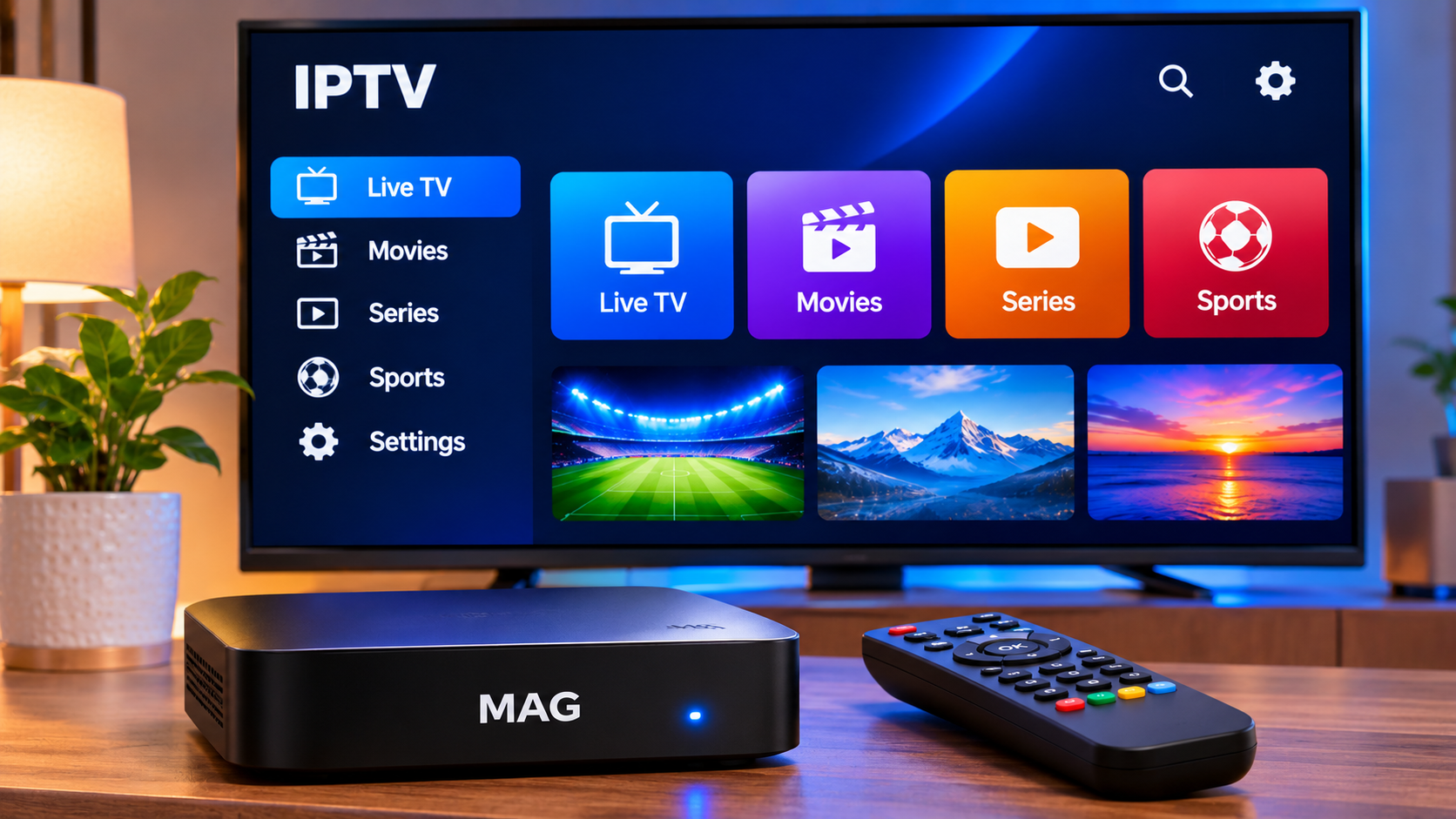
MAG boxes have been used for IPTV for years because they provide a television-focused interface controlled with a remote rather than a phone or computer. Instead of installing several apps, many MAG setups connect directly to an IPTV portal using a portal URL and the device's MAC address.
The process is fairly simple once you understand how the connection works. Most problems come from incorrect portal information, network issues, outdated device settings, or entering the wrong MAC address.
This guide explains the main parts of a MAG IPTV setup and the checks worth making when something does not load correctly.
What Is a MAG Box?
A MAG box is a dedicated set-top device designed to connect a television to internet-based media services.
Unlike a Smart TV application, the box operates as separate hardware connected to the television, usually through HDMI.
A typical MAG IPTV setup requires:
-
A compatible MAG device
-
Television with HDMI
-
Internet connection
-
IPTV subscription
-
Portal URL
-
Device MAC address
Depending on the model and service, the setup process may vary slightly.
How a MAG IPTV Portal Works
Many MAG devices use a portal-based connection.
The portal acts as the interface between the box and the IPTV service. Once the correct portal URL has been entered and the device has been authorized, the box can load the available television interface.
This differs from an M3U setup, where a player usually loads a playlist directly.
With a MAG box, the portal is often central to the entire experience.
Find the Correct MAC Address
One of the most important pieces of information in a MAG setup is the device's MAC address.
The IPTV provider may use this address to identify and authorize the box.
You can usually find the MAC address:
-
On a label on the device
-
On the packaging
-
Inside the device settings
-
Under network or system information
Copy it carefully.
A single incorrect character may prevent the service from recognizing the device.
Do Not Confuse Similar Addresses
Some devices display several network identifiers.
For example, the box may show information for both wired Ethernet and wireless networking.
Make sure you provide the exact address requested by the IPTV service.
If you are unsure which one is required, check the provider's setup instructions before changing anything.
Enter the Portal URL Carefully
The portal URL must usually be entered exactly as provided.
A typical MAG configuration involves opening the system settings, navigating to the server or portal section, and entering the portal address.
Users evaluating services such as Rapid IPTV can review the provider's device setup guidance before configuring a MAG box so the correct portal and activation process are followed.
When entering the URL, check for:
-
Missing characters
-
Incorrect punctuation
-
Extra spaces
-
Wrong protocol
-
Typing mistakes
Using a remote control to enter a long address can make errors easy to miss.
Typical MAG Portal Setup Process
Menu names can vary between MAG models, but the general process is similar.
A setup may involve:
-
Turn on the MAG box.
-
Open Settings.
-
Enter System Settings.
-
Open Servers.
-
Select Portals.
-
Enter a name for the portal.
-
Enter the portal URL.
-
Save the settings.
-
Restart the box.
After rebooting, the device should attempt to connect to the configured portal.
If it fails, verify the portal URL and device authorization before changing advanced settings.
Use Ethernet When Possible
MAG boxes are often installed permanently beside a television, which makes Ethernet a practical option.
A wired connection can provide more consistent performance than Wi-Fi because it avoids many common forms of wireless interference.
Ethernet may be especially useful when:
-
The router is near the television
-
Wi-Fi signal is weak
-
Several devices share the network
-
Streams buffer during busy periods
-
The box is used for long viewing sessions
A wired connection does not solve every IPTV problem, but it removes one common source of instability.
Check Network Settings
If the portal does not load at all, confirm that the MAG box has internet access.
Open the network settings and check whether the device has received an IP address.
A local IP address commonly looks similar to:
192.168.x.x
The exact value depends on the home network.
If no address is assigned, restart the router and MAG box before making more complicated changes.
Wi-Fi Can Work Too
Some MAG models support wireless networking directly or through additional hardware.
Wi-Fi can be convenient, but signal quality becomes important.
Try to keep the router:
-
In an open location
-
Away from thick walls
-
Away from large metal objects
-
Within reasonable range of the box
If IPTV works over Ethernet but performs poorly over Wi-Fi, the local wireless network is likely contributing to the problem.
Why the Portal May Not Load
A blank or failed portal can have several causes.
Possible reasons include:
-
Incorrect portal URL
-
Wrong MAC address
-
Subscription not activated
-
Internet connection failure
-
Temporary server issue
-
DNS problem
-
Outdated device firmware
-
Incorrect network configuration
Troubleshoot one area at a time instead of changing several settings together.
Restart Before Changing Advanced Settings
A simple restart can resolve temporary connection problems.
If the portal suddenly stops loading:
-
Restart the MAG box.
-
Restart the router if necessary.
-
Wait for the internet connection to return.
-
Open the portal again.
If the problem continues, check the portal address and subscription status.
Avoid resetting the entire box until simpler checks have been completed.
Check Subscription Status
If a MAG box previously worked and suddenly stops connecting, confirm that the IPTV subscription is still active.
An expired subscription may cause:
-
Portal login failure
-
Empty channel lists
-
Authorization errors
-
Content failing to load
Check account information before changing device settings.
Avoid Factory Resetting Too Quickly
A factory reset can remove saved network and portal settings.
This may make troubleshooting more difficult because the box has to be configured again from the beginning.
Try simpler steps first:
-
Restart the box
-
Restart the router
-
Check internet access
-
Verify the portal URL
-
Confirm the MAC address
-
Check subscription status
Use a factory reset only when there is a good reason.
Keep the Portal Information Private
Portal details should not be posted publicly.
Avoid sharing screenshots that expose:
-
Portal URLs
-
MAC addresses
-
Account information
-
Login credentials
-
Subscription identifiers
If you need technical assistance, hide private information before posting screenshots on a forum or social platform.
Why IPTV May Buffer on a MAG Box
Buffering can happen even when the portal loads correctly.
Possible causes include:
-
Weak Wi-Fi
-
Network congestion
-
Router problems
-
Temporary stream issues
-
High video quality
-
Other devices using bandwidth
-
Older hardware
Test several channels before assuming that the complete service is affected.
If only one stream buffers, the problem may be isolated.
Check Other Devices on the Network
Home internet connections are shared.
If another device is downloading a large game, uploading backups, joining a video call, or streaming high-resolution video, less bandwidth may be available for the MAG box.
If buffering happens mainly during busy periods, pause unnecessary network activity and test again.
Higher Resolution Requires More Bandwidth
High-resolution video requires a stronger and more consistent connection.
If higher-quality streams buffer while lower-resolution options work normally, the network or hardware may be reaching its limits.
Where alternative stream qualities are available, compare them.
Stable playback is generally more useful than selecting the highest resolution and experiencing constant interruptions.
Keep Device Firmware Current
MAG device manufacturers may release firmware updates that improve stability or compatibility.
Check the device's supported update method before installing anything.
Use official firmware intended for the exact model.
Installing incorrect firmware can create serious problems and may prevent the device from starting correctly.
Do Not Install Random Firmware
Firmware files from unknown websites can be risky.
They may be:
-
Outdated
-
Modified
-
Designed for another device
-
Incompatible with the current system
If firmware troubleshooting is required, use the manufacturer's official documentation or a trusted support source.
Portal URL vs M3U Playlist
Users sometimes confuse portal connections with M3U playlists.
They are different setup methods.
A portal URL is commonly entered into the MAG system settings and becomes part of the box interface.
An M3U playlist is normally loaded by a compatible IPTV player.
Do not paste an M3U URL into a portal field unless the device or provider specifically instructs you to do so.
Portal Name Is Usually Just a Label
Some MAG settings ask for both a portal name and portal URL.
The portal name is generally just a label that helps identify the connection.
For example, the user might enter a simple name such as:
My IPTV
The important technical value is usually the portal URL.
However, always follow the specific instructions provided for the device.
Correct Time and Date Can Matter
Incorrect date or timezone settings can cause confusing behavior in program guides or system information.
Check the box's:
-
Date
-
Time
-
Timezone
-
Region
This is particularly useful if EPG schedules appear several hours early or late.
EPG on MAG Devices
An Electronic Program Guide can make live television easier to navigate when the portal and service provide program information.
An EPG may display:
-
Current programs
-
Upcoming programs
-
Start times
-
End times
-
Channel schedules
The exact appearance depends on the portal interface and available data.
Use Favorites for Regular Channels
If the portal supports favorites, save frequently watched channels.
This makes navigation easier when the service contains many categories.
A favorites list might contain:
-
Sports
-
News
-
Entertainment
-
Family channels
-
International channels
Keep the list relatively small so that it remains useful.
MAG Box vs Smart TV App
Both approaches can provide IPTV access, but the experience is different.
A MAG box may appeal to users who prefer:
-
Dedicated hardware
-
Remote-control navigation
-
Portal-based interface
-
A device separate from the television's operating system
A Smart TV app may be more convenient for users who want fewer devices and cables.
The better choice depends on the household and preferred setup method.
MAG Box vs Android TV Box
Android TV boxes focus heavily on applications.
MAG boxes traditionally focus more on portal-based television interfaces.
Android devices may offer a wider selection of IPTV players, while a MAG box can provide a simpler dedicated television experience.
Neither approach is automatically better.
The right option depends on the applications, service connection method, and features the viewer prefers.
Troubleshooting Checklist
When a MAG IPTV setup stops working, check the basics in this order:
-
Confirm internet access.
-
Restart the MAG box.
-
Restart the router.
-
Verify the portal URL.
-
Confirm the MAC address.
-
Check subscription status.
-
Test another channel if the portal loads.
-
Review network settings.
-
Check for appropriate firmware updates.
-
Contact support if the issue remains.
Following a consistent order prevents unnecessary configuration changes.
Final Thoughts
A MAG box can provide a straightforward way to access IPTV through a dedicated television interface, but successful setup depends on a few important details.
The portal URL must be entered correctly, the correct MAC address must be authorized, and the box needs a stable internet connection.
If a problem appears, start with basic checks before resetting the device or changing advanced network settings. Confirm internet access, portal information, subscription status, and device authorization first.
With the portal and network configured correctly, a MAG box can provide a simple remote-controlled environment for accessing compatible live TV, sports, movies, and series.

 English
 Arabic
 French
 Portuguese
 Deutsch
 Turkish
 Dutch
 Italiano
 Russian
 Romaian
 Portuguese (Brazil)
 Greek