


QuickBooks Error 80070057: Causes and How to Fix It
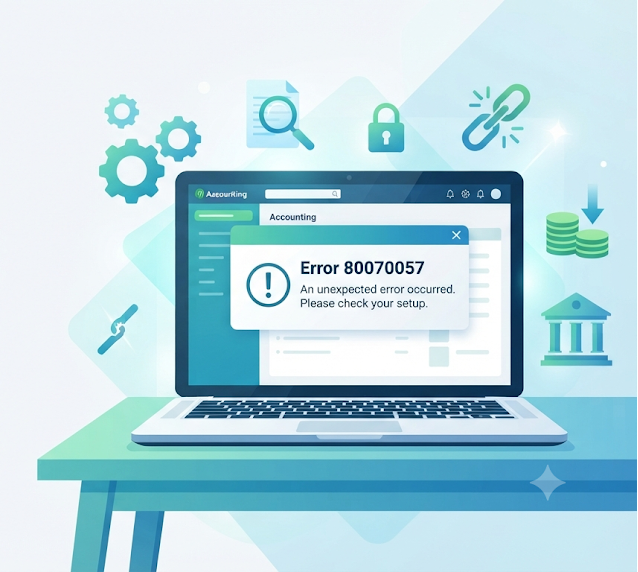
QuickBooks Error 80070057 usually occurs when QuickBooks Desktop is unable to open or access a company file, and the message in question is generally "The parameter is incorrect".
This problem may arise due to the method in which the file is opened, the file's location, Windows permissions, the network settings, or because of damaged components within the company file. Intuit suggests that you check the way in which the file is opened, update QuickBooks, use administrator permissions, test the default company-file location, and run the QuickBooks File Doctor.
What causes Error 80070057 in QuickBooks?
The error is not due to a single cause; one frequent reason is opening the company file directly from Windows rather than first opening QuickBooks and then selecting the company file. Intuit specifically advises that you should open QuickBooks Desktop, select the company file, and then choose Open.
The place where the file is stored can make a difference as well; difficulties are more likely to occur when the company file is kept on a network, a remote computer, a removable drive, or some other location where QuickBooks does not have the access that is expected. It is also possible for wrong folder permissions to stop QuickBooks from reading or altering the file properly.
How to Fix QuickBooks Error 80070057
Method 1: Open the Company File From QuickBooks
If QuickBooks is open, close it. Start up QuickBooks Desktop normally, select your company file from the list, and then choose Open. When you are having trouble, do not double-click the .QBW file from File Explorer.
A simple change will be able to cure the error if the problem lies with the method used for opening the file.
Method 2: Update QuickBooks Desktop
Ensure that the latest available version of QuickBooks Desktop is running for your version of the programme. To do this, open QuickBooks and select Help > Update QuickBooks Desktop.
Install one of the available updates, restart the program and then try opening the company file once more. It is recommended by Intuit that you update QuickBooks as part of the current set of troubleshooting steps.
Method 3: Run QuickBooks as Administrator
Turn off QuickBooks. Click on the QuickBooks Desktop icon and then select 'Run as administrator'. If Windows asks for permission, click Yes.
Now choose the company file and attempt to open it; this may be useful if Windows permissions are stopping QuickBooks from accessing the necessary files.
Method 4: Move a Copy to the Default Location
If the company file is situated in an unusual location, then copy the .QBW file and move the copy to the default company-file location used by QuickBooks
C:\Users\Public\Public Documents\Intuit\QuickBooks\Company Files
Open QuickBooks, select 'Find a company file', search the local drive, and open the copied file. If the file opens successfully in that location, the issue may be due to the original location, the permissions, or the network setup. Do not delete the original file.
Method 5: Run QuickBooks File Doctor
File Doctor is included in the QuickBooks Tool Hub and can be used to deal with some problems relating to company files and networks. You should open the QuickBooks Tool Hub, choose Company File Issues, and then run the QuickBooks File Doctor.
Choose the company file that is affected and have the programme check it. It's a good idea to make a backup before carrying out the repair work.
Method 6: Refresh the Network File
When QuickBooks is used in multi-user mode, the .ND file can have out-of-date network information.
Shut down QuickBooks on all computers and find the .ND file that corresponds to your company file. Add .old to the filename to rename it.
Open the QuickBooks Database Server Manager on the server and scan the company file folder so that QuickBooks can recreate the network configuration information.
Method 7: Check the File Location and Permissions
If the file can be opened when accessed locally but not when accessed over the network, then check the shared folder permissions, the hosting setup, and the firewall.
The shared folder should have the company file's computer configured properly, and users should have the correct access to it. If you have any doubts regarding Windows permissions, it's best to ask an IT professional rather than altering them at random.
What if the Error 80070057 still shows up?
If the error persists, try opening a sample company file. In this case, if the sample file opens but your company file does not, the problem might be due to your file or its location. However, if neither the sample nor your company file opens, then QuickBooks or Windows will probably need to be repaired further.
It is advisable to keep a recent backup prior to carrying out major changes, and Intuit also suggests using the QuickBooks Tool Hub when troubleshooting company file and program issues.
Conclusion
Error 80070057 in QuickBooks is generally caused by an access issue or by the file location, though in some cases damaged company files or incorrect network settings can also be the cause.
Begin with the most basic steps by opening the file in QuickBooks, updating the software, and running it with administrator rights. Afterwards, test the local copy and use File Doctor if needed. Accounting Assist Pro Services at +1-888-892-5727 can guide you through the fix if you get stuck.
FAQs
What is error 80070057 in QuickBooks?
This indicates that QuickBooks is unable to access or open the company file properly.
Why does Error 80070057 happen?
It may be caused by problems with file location, permissions, the network, or the company file.
How do I fix Error 80070057?
Begin by starting up QuickBooks, updating it, and then try running it as administrator.
Is it possible for a network to cause this error?
Right, wrong network access or permissions can cause problems with the company file.
Should I move my company file?
You can try the copy in the default folder in QuickBooks and make sure you don't delete the original.
Can the QuickBooks File Doctor provide assistance?
Yes, it is capable of checking certain problems in company files and in the network.
Is it safe to change the name of the ND file?
Right, changing its name will not cause your company data to be deleted, since QuickBooks is able to recreate it.
Does the fact that I'm getting error 80070057 mean that my file is damaged?
It isn't always the case that the error occurs; it may be due to access or location issues.
Shall I attempt to repair it myself?
Simple troubleshooting is generally safe, but any changes to the network or permissions might necessitate getting help from IT.
What if the error stays?
Make sure you have a backup and have the file, the network configuration, and the QuickBooks installation checked by professionals.

 English
 Arabic
 French
 Spanish
 Portuguese
 Deutsch
 Turkish
 Dutch
 Italiano
 Russian
 Romaian
 Portuguese (Brazil)