


Unleashing WordPress Speed on CyberPanel: Configuring OpenLiteSpeed & Native LSCache
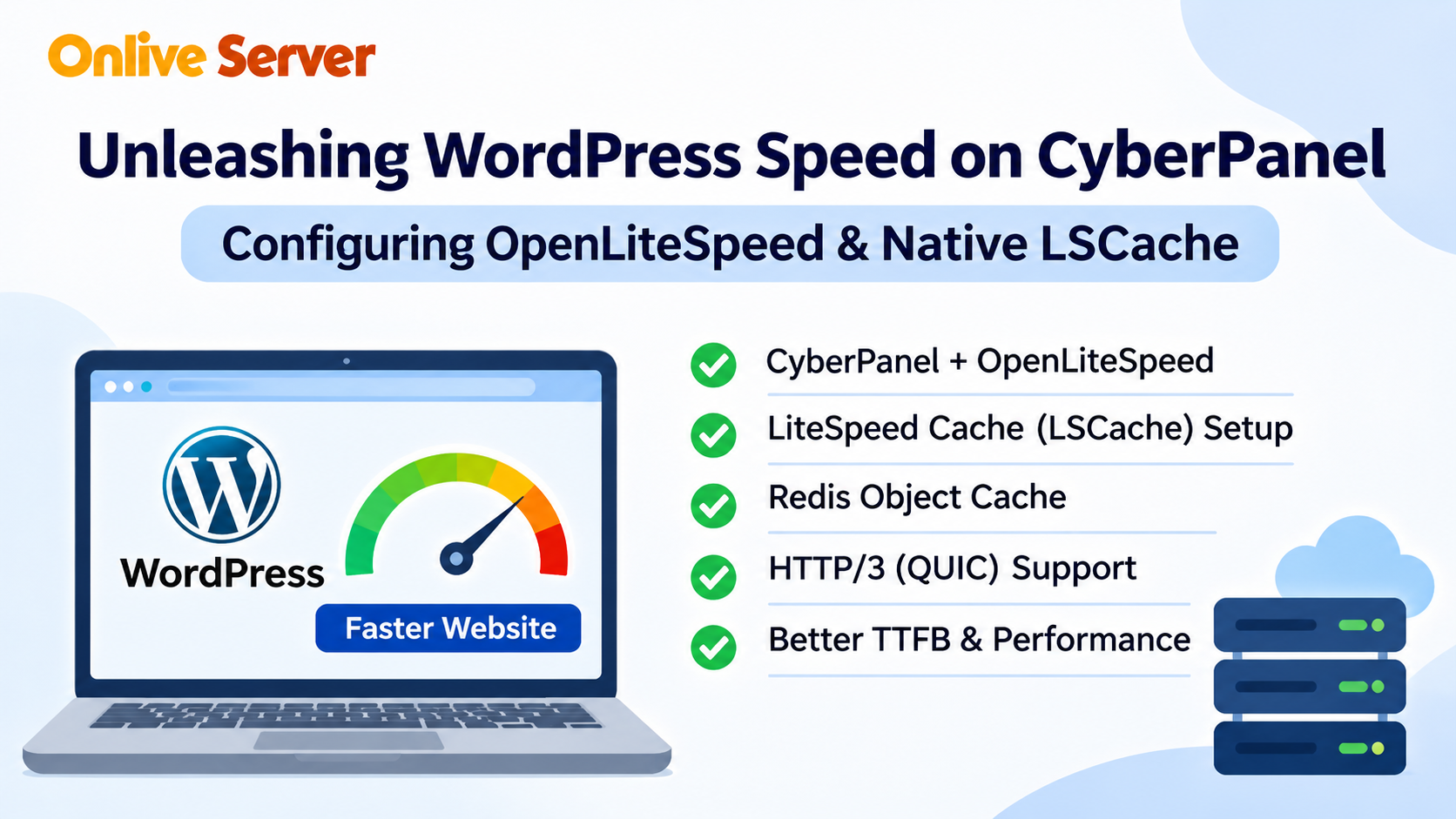
A WordPress website can become slow even when it runs on a VPS with enough CPU and RAM. Large images, unnecessary plugins, repeated database queries, and poorly configured caching can all increase page loading times.
CyberPanel offers a practical way to manage WordPress websites using OpenLiteSpeed, a web server that supports server-level page caching through LiteSpeed Cache.
When configured correctly, this combination can reduce repeated PHP processing and help websites respond faster.
For WordPress developers and WooCommerce store owners, understanding CyberPanel WordPress OpenLiteSpeed optimization is useful because many performance improvements can be made without changing the entire website.
This guide explains how to configure LiteSpeed Cache, Redis object caching, HTTP/3, and other important settings on a CyberPanel VPS.
1. How CyberPanel and OpenLiteSpeed Work Together
CyberPanel is a web hosting control panel built around OpenLiteSpeed.
It allows administrators to manage websites, domains, databases, SSL certificates, and PHP configurations through a graphical interface.
OpenLiteSpeed handles incoming website requests and delivers content to visitors.
For dynamic WordPress pages, the web server normally needs to execute PHP code and retrieve information from the database.
When a suitable page is cached, OpenLiteSpeed can deliver the stored response without repeating the complete WordPress processing cycle.
What Makes LiteSpeed Cache Different?
LiteSpeed Cache works with the LiteSpeed web server's caching features.
The LiteSpeed Cache plugin for WordPress helps control caching rules, exclusions, and optimization settings.
Its page caching feature can store generated HTML responses and reuse them for suitable future requests.
This reduces unnecessary work for PHP and the database.
Caching is especially useful for blog posts, informational pages, and other content that does not change for every visitor.
Dynamic pages still require careful handling.
2. Prepare Your CyberPanel VPS for WordPress Optimization
Before changing caching settings, make sure your website is working correctly.
Your server should have:
-
CyberPanel with OpenLiteSpeed installed.
-
A functioning WordPress website.
-
A valid SSL certificate.
-
A compatible PHP version.
-
Enough available memory and storage.
-
A recent backup of website files and the database.
Also update WordPress, themes, and plugins to compatible versions.
Performance optimization should begin with a stable website. Trying to fix existing application errors through caching settings can make troubleshooting more difficult.
Check Basic Server Resources
Connect to your VPS through SSH and check memory usage:
free -hCheck disk space:
df -hThese commands help identify whether the server is already under resource pressure.
If memory or disk space is nearly exhausted, address those problems before enabling additional caching services.
3. Install the LiteSpeed Cache Plugin
The LiteSpeed Cache plugin provides the WordPress interface for managing caching and related optimization features.
To install it:
-
Log in to your WordPress dashboard.
-
Open Plugins → Add New Plugin.
-
Search for LiteSpeed Cache.
-
Install the plugin published by LiteSpeed Technologies.
-
Activate it.
After activation, a LiteSpeed Cache menu should appear in your WordPress dashboard.
The plugin can detect supported LiteSpeed server environments, but you should still verify that server-side caching is available and enabled.
Enable Page Caching
Open:
LiteSpeed Cache → Cache → Cache
Enable the main caching option.
Save your changes and test the website.
The plugin provides several additional caching controls. Avoid enabling every feature immediately.
Start with basic page caching, confirm that the website behaves correctly, and then adjust other settings.
4. Configure Cache Rules for WordPress
Caching improves performance by reducing repeated work, but different website pages have different requirements.
A public blog article can usually be cached.
A personalized customer account page may need to remain dynamic.
Public Page Caching
For a standard WordPress blog, page caching can help reduce repeated PHP and database processing.
OpenLiteSpeed can serve cached responses for eligible requests.
This is useful when several visitors access the same article or informational page.
The benefit depends on cache hit rates and how much work the uncached application normally performs.
Cache Exclusions
Some pages should not use shared full-page caching.
Common examples include:
-
Shopping cart pages.
-
Checkout pages.
-
Customer account pages.
-
Personalized dashboards.
-
Other pages containing visitor-specific information.
WooCommerce integrations commonly provide appropriate default exclusions, but administrators should verify them.
Incorrect caching can cause outdated information or user-specific content to appear where it should not.
5. Use Redis Object Caching
WordPress stores much of its content and configuration in a database.
Even when full-page caching is enabled, some requests still need database access.
Redis object caching can help reduce repeated database queries by storing reusable application objects in memory.
This is particularly useful for dynamic applications where full-page caching is not always possible.
Install Redis on the VPS
On a compatible Debian or Ubuntu system, Redis can commonly be installed using:
sudo apt update
sudo apt install redis-server
Check the service:
sudo systemctl status redis-serverThe exact service name and package availability depend on the operating system.
Make sure Redis is secured and not exposed unnecessarily to the public internet.
Connect Redis to WordPress
Open your WordPress dashboard and navigate to the LiteSpeed Cache object cache settings.
The usual path is:
LiteSpeed Cache → Cache → Object
Select Redis as the object cache method.
Configure the connection details to match your Redis installation.
A local Redis service commonly listens on:
127.0.0.1:6379Your PHP environment also needs a compatible Redis extension.
Enable object caching only after the connection test succeeds.
When Redis Helps Most
Redis can be useful for WooCommerce stores, membership websites, and applications that perform repeated database operations.
However, object caching also consumes memory.
On a small VPS, monitor Redis usage alongside PHP workers and the database.
Adding Redis to an already memory-constrained server may not improve overall performance.
6. Optimize CSS, JavaScript, and Images
Server-level caching is only one part of WordPress performance.
Large images and unnecessary frontend files can still slow down the visitor's experience.
LiteSpeed Cache includes tools for frontend optimization.
CSS and JavaScript Optimization
The plugin provides options for CSS and JavaScript minification.
Minification removes unnecessary characters from files, reducing their size.
Some installations also support additional file optimization features.
Enable changes one at a time and test the website after each adjustment.
Aggressive JavaScript optimization can break menus, forms, checkout functions, or other interactive elements.
If a problem appears, disable the most recent optimization setting and investigate the affected files.
Image Optimization
Large images increase the amount of data visitors need to download.
Use appropriately sized images and modern formats where supported.
LiteSpeed Cache also offers image optimization features that may depend on external LiteSpeed services.
Check the available settings and service requirements before enabling them.
Image optimization should preserve acceptable visual quality while reducing unnecessary file sizes.
7. Configure HTTP/3 and QUIC Support
HTTP/3 is a modern HTTP protocol that uses QUIC over UDP.
It can improve connection behavior under certain network conditions, particularly where packet loss or connection changes affect traditional transport.
OpenLiteSpeed supports HTTP/3, but availability depends on the installed version and server configuration.
Check HTTP/3 Requirements
Before enabling or troubleshooting HTTP/3, confirm that:
-
The installed OpenLiteSpeed version supports it.
-
HTTPS is configured correctly.
-
The server and network firewall allow the required UDP traffic, commonly UDP port 443.
-
The website's network path and any CDN support the intended protocol.
HTTP/3 should not be treated as a guaranteed speed improvement for every website.
Its benefits vary with network conditions, browser support, and server configuration.
8. Understand TTFB and Measure Website Performance
Time to First Byte, or TTFB, measures how long it takes for the browser to receive the first byte of the server's response after making a request.
A lower TTFB can indicate faster response handling, but the result also includes network and connection-related delays.
Caching can reduce server processing time for eligible pages.
However, the final TTFB depends on several factors, including:
-
Server location.
-
Visitor network latency.
-
PHP and database processing.
-
Cache hit or miss status.
-
Network congestion.
-
CDN configuration.
How to Test Performance
Use the browser's developer tools or a suitable performance testing tool to compare results.
Test the same page before and after optimization.
Check both cached and uncached requests.
For a basic command-line inspection, you can use:
curl -o /dev/null -s -w '%{time_starttransfer}\n' https://example.com/Replace the example domain with your website.
This displays the time until the first response byte is received from the command's execution environment.
Run multiple tests under comparable conditions.
A single result does not establish the website's normal performance.
9. Configure the LiteSpeed Cache Crawler Carefully
LiteSpeed Cache includes crawler functionality in supported environments.
A crawler can visit selected website pages to help populate the cache before regular visitors request them.
This can reduce cold-cache requests for frequently visited pages.
However, crawler activity also consumes CPU, memory, and application resources.
When to Enable the Crawler
Crawler-based cache warming may be useful for websites with many public pages.
Before enabling it, confirm that the server supports the feature and that the crawler is available in your OpenLiteSpeed configuration.
Do not assume it is enabled by default.
On a small VPS, aggressive crawling can compete with real visitors for resources.
If the feature is available, use conservative settings and monitor server load.
10. Understand ESI for Dynamic WordPress Content
ESI stands for Edge Side Includes.
It allows certain caching systems to handle parts of a page separately.
For example, a website may have mostly public content but also display information that changes for individual visitors.
ESI can help manage this type of mixed content in supported caching environments.
However, ESI support is not identical across all LiteSpeed products.
OpenLiteSpeed does not provide the same ESI capabilities as LiteSpeed Enterprise.
Administrators using CyberPanel with OpenLiteSpeed should not assume that enabling an ESI setting in WordPress will make every ESI feature available.
For dynamic WooCommerce content, use supported cache exclusions and application-specific caching rules instead of relying on unsupported features.
11. Keep the WordPress Database Healthy
Caching cannot completely solve problems caused by inefficient database queries or unnecessary stored data.
WordPress databases may accumulate revisions, expired transient data, and other records over time.
LiteSpeed Cache provides database optimization tools for selected cleanup operations.
Before removing data, create a verified database backup.
Review the cleanup options carefully because some operations permanently delete stored records.
For WooCommerce websites, avoid removing information without understanding how it is used by the store.
Database maintenance should support application performance without risking important business data.
12. Is CyberPanel Faster Than cPanel for WordPress?
CyberPanel with OpenLiteSpeed can provide strong WordPress performance when LiteSpeed Cache is configured correctly.
However, comparing CyberPanel with cPanel based only on the control panel name is misleading.
cPanel can manage different web server configurations, and its performance depends on the underlying software and caching setup.
A properly configured Apache or Nginx environment may perform well for many WordPress workloads.
Similarly, an OpenLiteSpeed server with poor PHP settings, insufficient memory, or inefficient plugins may still deliver slow pages.
The most useful comparison is between complete hosting configurations under similar conditions.
Test server response times, cache behavior, database load, and resource usage before deciding which setup is better for your website.
For WooCommerce businesses considering their hosting requirements, Onlive Server's guide to WooCommerce VPS hosting for a scalable store provides related information.
Final Thoughts
CyberPanel and OpenLiteSpeed provide useful tools for managing and optimizing WordPress websites.
LiteSpeed Cache can reduce repeated PHP processing, while Redis object caching may help applications that rely heavily on database queries.
Image optimization, careful frontend settings, and appropriate cache exclusions also contribute to a better website experience.
The best results come from testing each change rather than enabling every optimization feature at once.
For WordPress developers and WooCommerce store owners, the goal should be consistent performance, correct website functionality, and efficient VPS resource usage.

 Arabic
 French
 Spanish
 Portuguese
 Deutsch
 Turkish
 Dutch
 Italiano
 Russian
 Romaian
 Portuguese (Brazil)
 Greek