


How To Setup TP Link Deco?: A Complete Guide
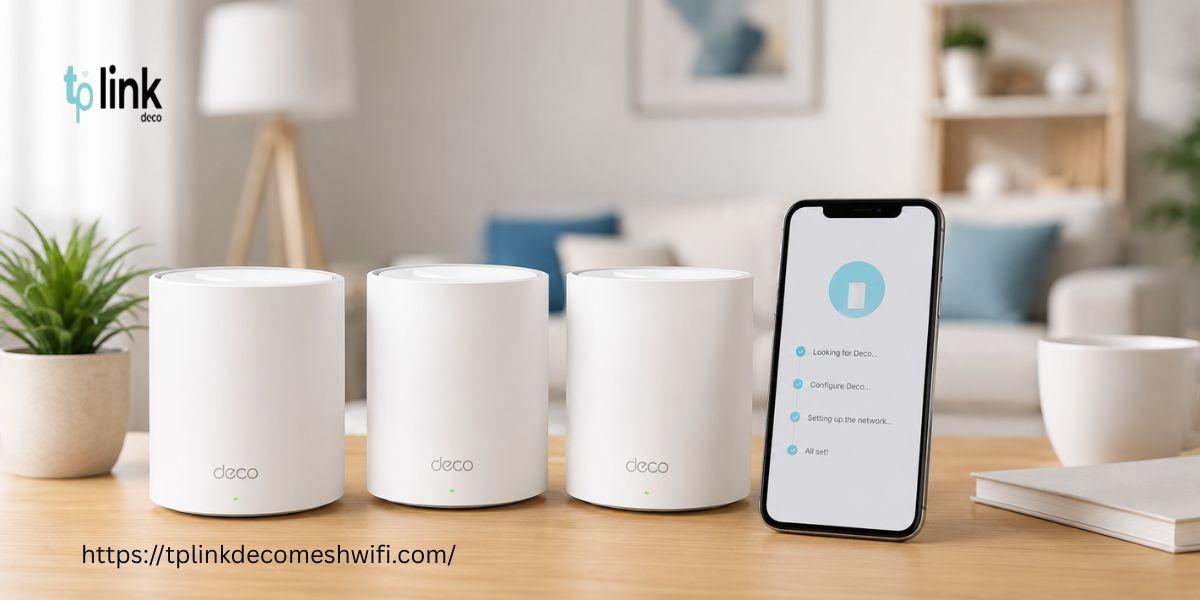
Setting up a TP Link Deco system can help create an reliable WiFi network throughout your home. The Deco system uses units to provide wider coverage and reduce weak signal areas. This guide explains the complete tp link deco setup process along with firmware updates and basic troubleshooting.
What You Need Before Setup
Before starting your setup, keep these items ready:
-
TP Link Deco units
-
Power adapters
-
Ethernet cable
-
Smartphone or tablet
-
Active internet connection
-
TP Link ID
-
TP Link Deco app
Make sure your modem is working properly before connecting your Deco system.
Steps for TP Link Deco Setup
1. Download the Deco App
Install the TP Link Deco app on your Android or iOS device. Open the application and sign in with your TP Link ID. Create an account if you do not already have one.
2. Connect the Main Deco
Turn off your modem. Connect the modem to the Deco unit using an Ethernet cable. Turn on your modem. Wait until the internet connection becomes stable.
Now connect the Deco to power. Wait for the light to start flashing.
3. Start the Setup
Open the Deco app. Select your Deco model. Follow the instructions shown on the screen. The application will guide you through the connection process.
Choose your internet connection type when requested. Enter the internet details if your internet provider needs them.
4. Create Your WiFi Network
Enter a WiFi name and password. Use a password to protect your network.
After creating the network connect your phone to the Deco WiFi network.
5. Add Other Deco Units
Place the Deco units in suitable locations around your home. Avoid placing them far from the main Deco.
Open the Deco app. Follow the instructions to add each unit. The app will help you identify locations.
TP Link Deco Firmware Update
A TP Link Deco firmware update can improve network performance and security. Firmware updates may also fix bugs. Add new features.
To check for updates:
- Open the Deco app.
-
Go to the section.
-
Select System.
-
Choose Update Deco.
-
Check whether a new firmware version is available.
-
Start the update if one is available.
-
Keep the Deco units powered on during the update.
-
Do not disconnect the power while the firmware update is running.
Common TP Link Deco Setup Problems
If your Deco setup does not work properly, try these solutions:
-
Restart your modem and Deco units.
-
Check the Ethernet cable connection.
-
Keep Deco units closer together during setup.
-
Confirm that your internet service is working.
-
Restart the Deco app.
-
Check your WiFi password.
-
Update the Deco app.
-
Check for firmware updates.
If the problem continues, reset the Deco unit and perform the setup again.
Conclusion
The tp link deco setup process is simple when you follow the instructions carefully. Start with the Deco and then add the remaining units through the Deco app. Keep your system updated with the TP Link Deco firmware update to maintain better performance and security.
FAQs:
Q1. How do I set up TP Link Deco?
Install the Deco app and connect the Deco to your modem. Follow the instructions in the app to complete the setup.
Q2. Can I update TP Link Deco firmware from the app?
Yes. You can. Install available firmware updates through the Deco app.
Q3. Why is my Deco not connecting to the internet?
Check your modem connection and Ethernet cable. Restart both your modem and Deco system before trying the setup.
Q4. Where should I place my Deco units?
Place Deco units in open areas where they can maintain a strong connection with the main Deco.
Also Read:
https://medium.com/@tplinkdecomeshwifii/how-to-block-websites-on-deco-app-a-quick-guide-5ad5efeb9f52
https://69f47f12e6bb1.site123.me/blog/how-to-fix-tp-link-deco-keeps-going-offline-issue
https://tplinkdecomeshwifi.weebly.com/blog/how-to-reset-tp-link-deco-a-complete-guide
https://tplinkdecomeshwifi.wixsite.com/my-site-1/post/how-to-login-to-tp-link-deco

 English
 Arabic
 French
 Spanish
 Portuguese
 Deutsch
 Turkish
 Italiano
 Russian
 Romaian
 Portuguese (Brazil)
 Greek
Greek