


How to Improve Navigation Between Different Entertainment Applications on Smart TVs
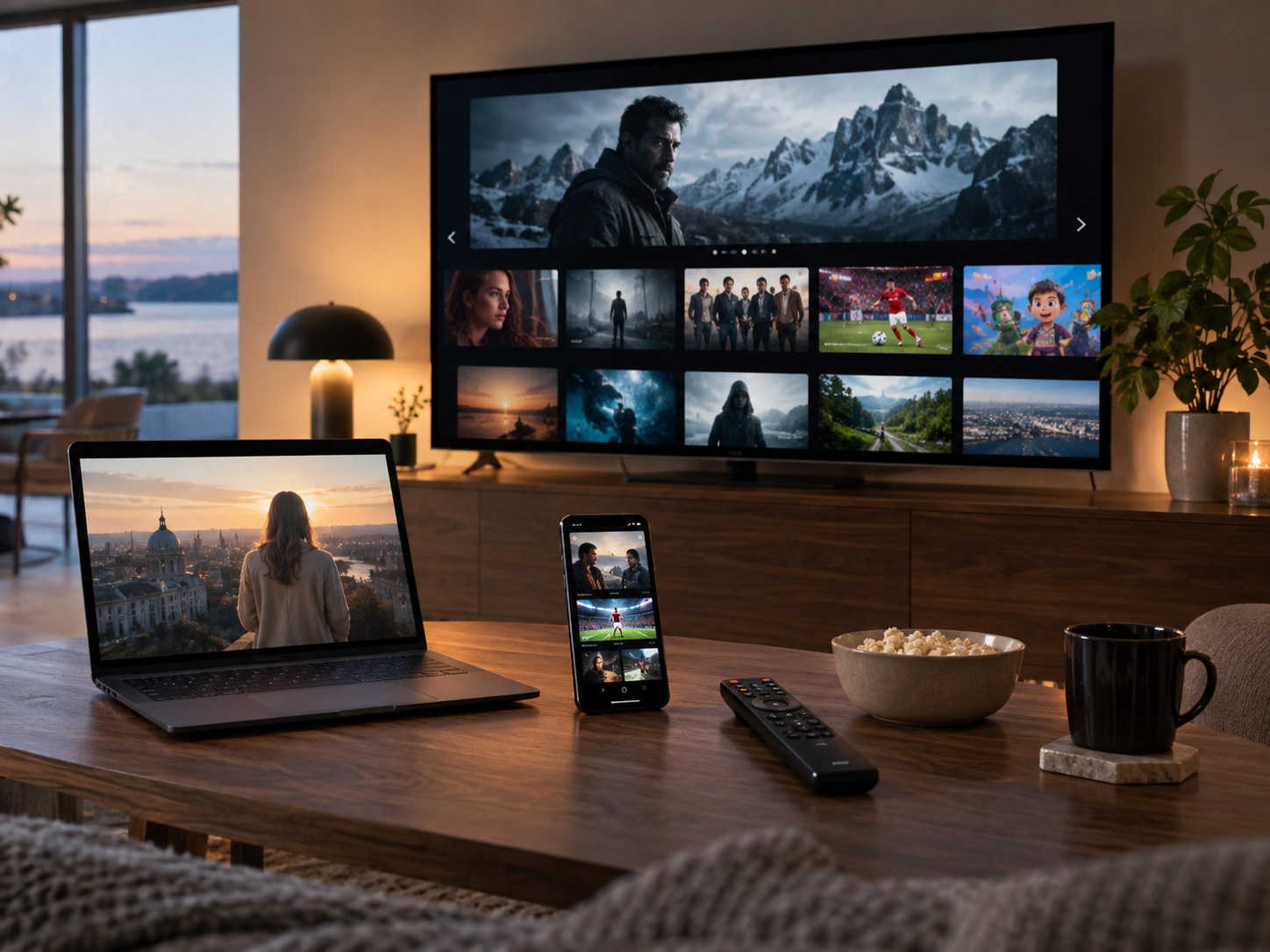
Smart televisions allow viewers to access a wide range of entertainment applications from a single screen. Users can switch between streaming platforms, music services, live television, video-sharing applications, and gaming features without connecting multiple devices. Although this variety makes home entertainment more flexible, moving between different applications can sometimes feel confusing or time-consuming.
Some televisions have crowded home screens, complicated menus, or remote controls with limited navigation options. Others may take several seconds to open applications or return to the previous screen. These small difficulties can interrupt viewing and make everyday television use less convenient.
Improving the way applications are organised and accessed can make a noticeable difference. With a few adjustments to the home screen, remote control settings, and application management, viewers can create a smoother experience.
Understand How Smart TV Application Navigation Works
Smart TV interfaces are designed to bring different entertainment services together in one place. Instead of using separate menus for every service, viewers can access applications through a central home screen or launcher.
Effective app navigation helps users move between services without repeatedly searching through menus. A well-organised interface makes frequently used applications easy to locate while keeping less important features out of the way.
Most smart televisions provide several navigation methods, including:
-
Home screens containing installed applications.
-
Dedicated application menus.
-
Recently used application lists.
-
Search tools for finding installed services.
-
Remote control shortcuts.
-
Voice commands on compatible models.
The exact layout depends on the television's operating system and manufacturer. Understanding the available controls is the first step towards making application switching easier.
Organise the Home Screen Around Your Viewing Habits
The home screen is usually the starting point for accessing entertainment applications. When it contains too many icons, recommendations, and promotional sections, finding a specific service can become frustrating.
Rearranging applications according to personal viewing habits can make the interface easier to use.
Start by identifying the applications used most frequently. Place these near the beginning of the application list or in the most accessible area of the home screen. Less frequently used services can remain further down the menu.
For example, a household that regularly watches films and live television might prioritise those applications. Music, fitness, and occasional gaming applications can be placed in secondary positions.
Many smart TVs allow users to:
-
Move application icons into a preferred order.
-
Remove shortcuts from the home screen.
-
Create favourite application lists.
-
Hide recommendations or unwanted sections.
-
Add frequently used services to quick-access areas.
A simple layout reduces the number of steps required to reach commonly used entertainment options.
Make Better Use of Remote Control Shortcuts
The remote control plays an important role in smart TV navigation. Although most users rely on directional buttons and the home button, many remotes include additional features that can make switching between applications faster.
Some models have dedicated buttons for popular streaming services. Others provide shortcuts, recent-app menus, or programmable buttons that users can assign to preferred functions.
It is worth checking the remote control manual to understand which features are available.
A few practical habits can also improve navigation:
Use the Home Button: Returning to the main screen is often the simplest way to access another application.
Learn Shortcut Functions: Dedicated buttons can reduce the number of selections needed to open frequently used services.
Use Back Navigation Correctly: The back button usually returns to the previous screen, although its behaviour may differ between applications.
Check Recent Applications: Some televisions provide a quick way to reopen recently used services without returning to the full application menu.
Learning these basic controls can make everyday operation more consistent, particularly for household members who are less familiar with smart television interfaces.
Use Voice Search and Voice Commands Where Available
Voice control can provide a convenient alternative to navigating menus manually. Compatible televisions allow users to search for applications, locate programmes, and perform certain device functions through spoken commands.
Instead of typing a service name using the remote control, a viewer may be able to say the name and open the relevant application.
Voice commands can be especially helpful when:
-
Searching for a specific application.
-
Finding programmes by title or genre.
-
Opening television settings.
-
Switching between supported inputs.
-
Adjusting volume or playback controls.
However, voice functionality varies between television models and operating systems. Some systems require a compatible remote control, an internet connection, or permission to use the microphone.
Users should also review voice assistant privacy settings to understand how voice requests and recordings are handled.
Remove Applications You No Longer Use
Having many installed applications does not necessarily improve the entertainment experience. Unused services can make application menus crowded and may occupy valuable internal storage.
Reviewing installed applications regularly can help keep the television interface organised.
Look for applications that have not been opened for several months or services that duplicate functions already provided by another platform. If they are no longer needed, consider uninstalling them.
Removing unnecessary applications can offer several benefits:
-
A cleaner application menu.
-
More available storage space.
-
Easier access to frequently used services.
-
Fewer unused shortcuts.
-
Less time spent searching through menus.
Before uninstalling an application, check whether it contains saved information or account details that may be needed later. Some services may require users to sign in again if they reinstall them.
Keep the Television Software Updated
Smart TV operating systems receive updates that can improve interface performance, fix application problems, and introduce navigation features.
An outdated system may have difficulty running newer applications or displaying certain interface elements correctly. Regular updates can help maintain compatibility between the television and installed services.
Open the television's settings menu and check for available system updates. If an update is offered, follow the manufacturer's instructions.
Applications should also be updated through the official application store or supported update system.
However, updates should be installed from trusted sources only. Unofficial software may create compatibility problems or introduce security risks.
If an application continues to behave unexpectedly after an update, check whether the developer has published additional troubleshooting guidance.
Improve Performance When Switching Between Applications
Slow application switching can make a smart television feel less responsive. This may happen when the device has limited memory, insufficient storage, or applications that are experiencing temporary problems.
A few maintenance steps can help improve performance.
First, close applications that are no longer responding or behaving correctly. Some televisions automatically manage background applications, while others provide a recent-app menu.
Second, review available storage. Removing unused applications and clearing temporary cache files may help when storage space is limited.
Third, restart the television if the interface becomes unusually slow. A restart can clear temporary system states and allow applications to load again.
It is also worth checking the internet connection when online applications take a long time to open. Streaming services may require a stable connection to load menus, recommendations, and programme information.
Not every delay is caused by the television itself. Application servers, network conditions, and the performance of individual services can also affect response times.
Use Profiles and Favourites to Simplify Access
Some entertainment platforms allow users to create separate profiles and save favourite programmes or services. These features can make navigation more convenient for households with different viewing preferences.
Individual profiles help keep recommendations, watchlists, and viewing progress separate. This reduces the need to search through content selected by other household members.
Favourites can also make it easier to return to frequently watched channels, programmes, or categories.
For example, one family member may regularly watch documentaries, while another prefers sports and films. Separate profiles and organised favourites can help each person find relevant content more quickly.
The available features depend on the application and television platform, so users should check which options are supported.
Make Navigation Easier for Everyone in the Household
A smart television is often shared by people with different levels of technical experience. A menu that seems straightforward to one person may be confusing to another.
Creating a consistent layout can make the television easier for everyone to use.
Keep commonly used applications in predictable positions and avoid changing the arrangement frequently. Explain the main remote control functions to household members who may need assistance.
Accessibility features can also improve navigation. Depending on the television, options may include larger text, high-contrast menus, screen readers, voice control, and simplified remote settings.
These tools can help older viewers, children, and people with visual or mobility difficulties interact with entertainment applications more comfortably.
Conclusion
Navigating between entertainment applications should be simple and convenient. However, crowded home screens, unfamiliar remote controls, outdated software, and slow application performance can make smart television use unnecessarily complicated.
Organising the home screen, learning remote shortcuts, using voice search, removing unused applications, and keeping software updated can all improve the experience.
A well-arranged interface does not need to include complicated customisation. The most effective setup is one that gives household members quick access to their preferred services while keeping menus clear and easy to understand. With occasional maintenance and thoughtful organisation, switching between entertainment applications can become a much smoother part of everyday television viewing.

 Arabic
 French
 Spanish
 Portuguese
 Deutsch
 Turkish
 Dutch
 Italiano
 Russian
 Romaian
 Portuguese (Brazil)
 Greek